Quick Start Guide
B One 5G
You’re all set and ready to go!
1 /4
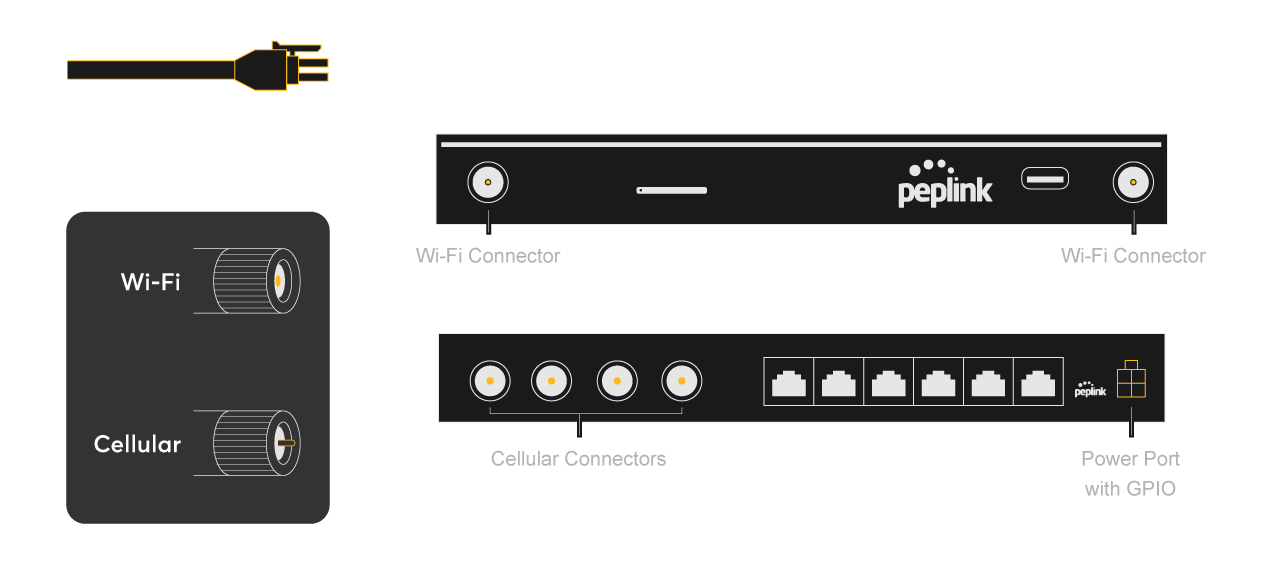
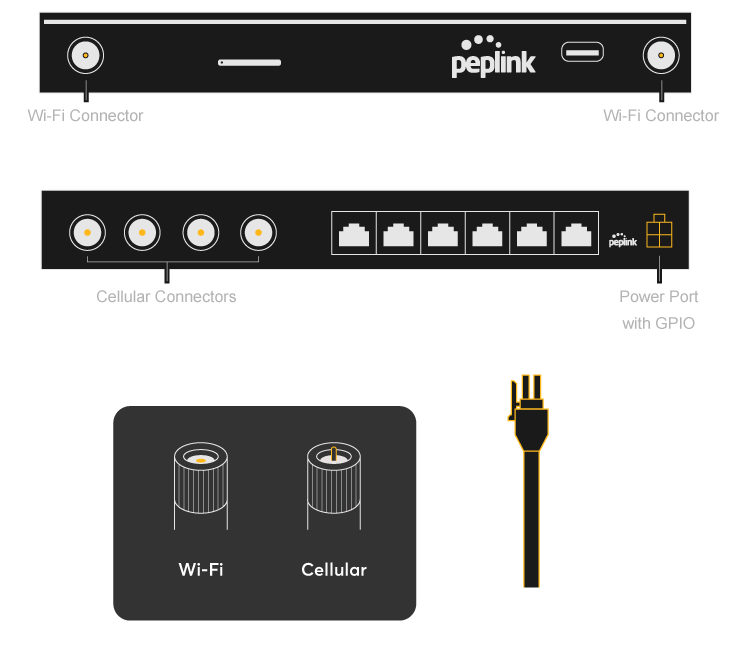
Connect the Power Cord and the Antennas*
* Refer to antenna connector or cable ends
2 /4
WAN Setup
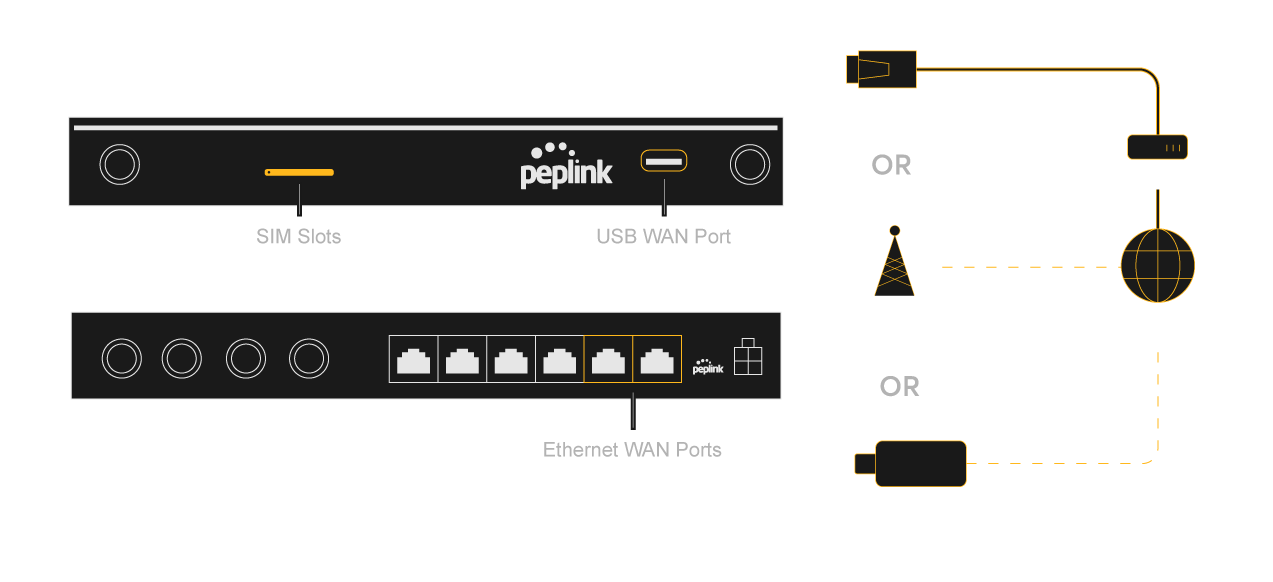
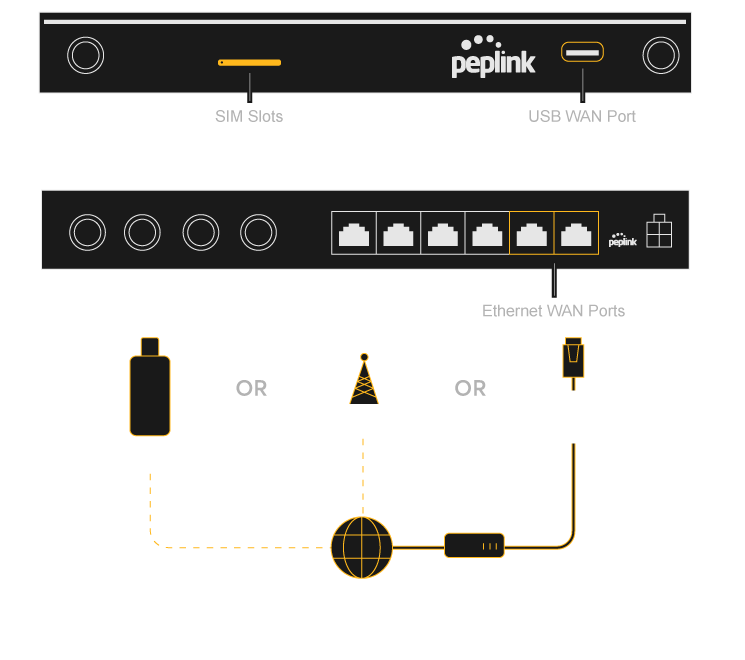
Connect Your Devices By Ethernet Cable # or SIM Cards^ or USB Modem
^ Inserted SIM cards and the pre-purchased 20GB Peplink eSIM Data Plan are activated automatically when the device is booted for the first time.
3 /4
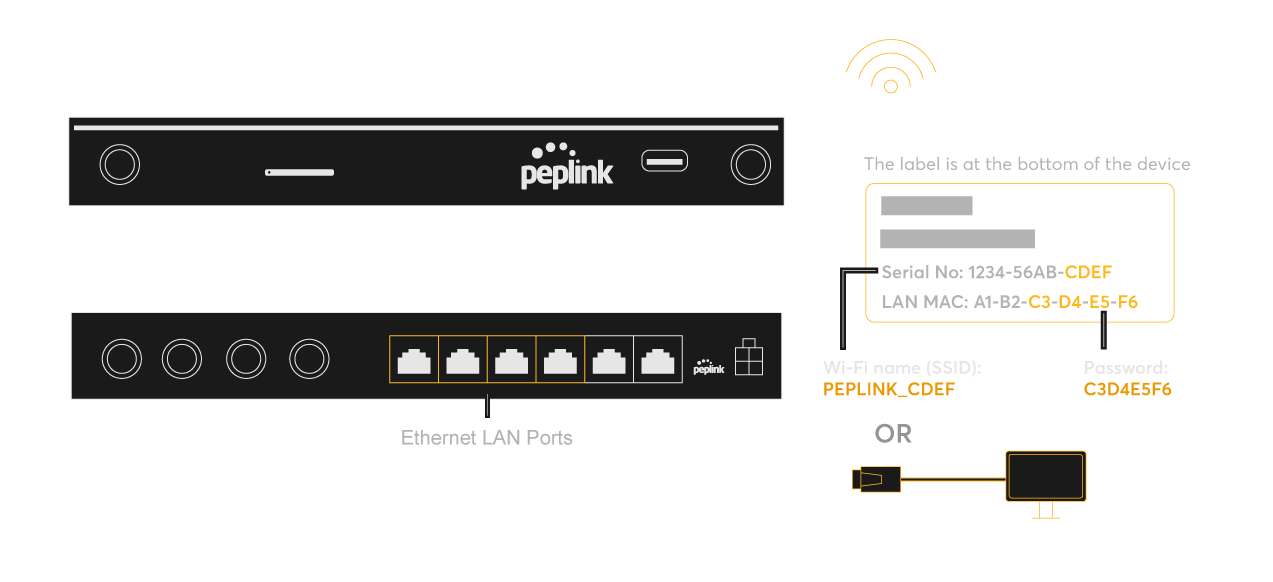
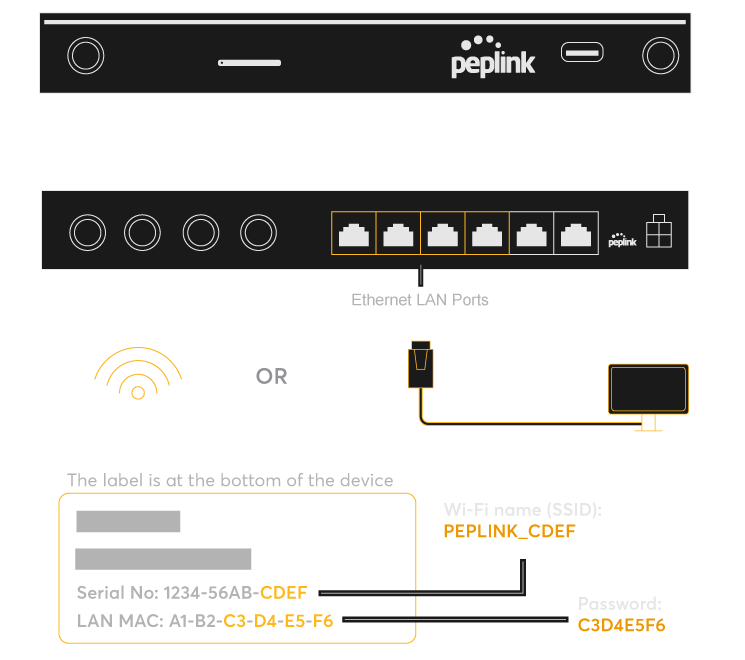
LAN Setup
Connect Your Devices By Ethernet Cable # or Wi-Fi
4 /4
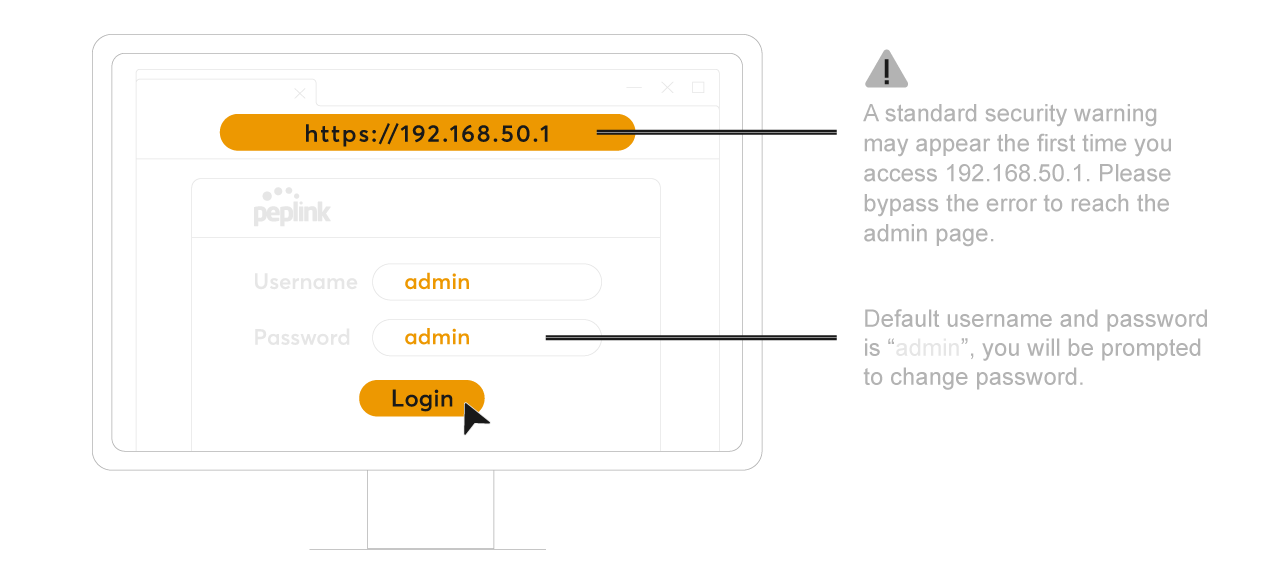
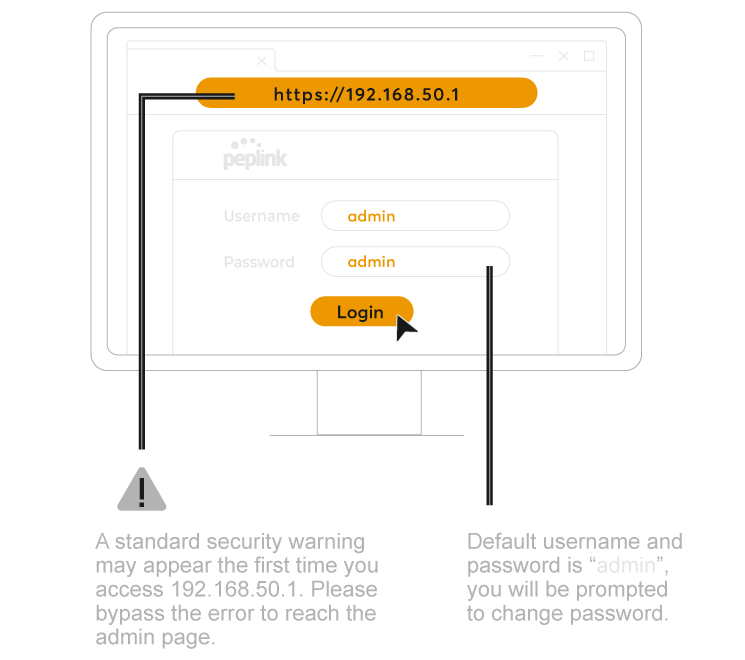
Login to the Admin Page
If you’re accessing the admin page via Wi-Fi, you may be disconnected from the network after
changing the Wi-Fi password.
Simply reconnect with the new password and proceed as normal.
+
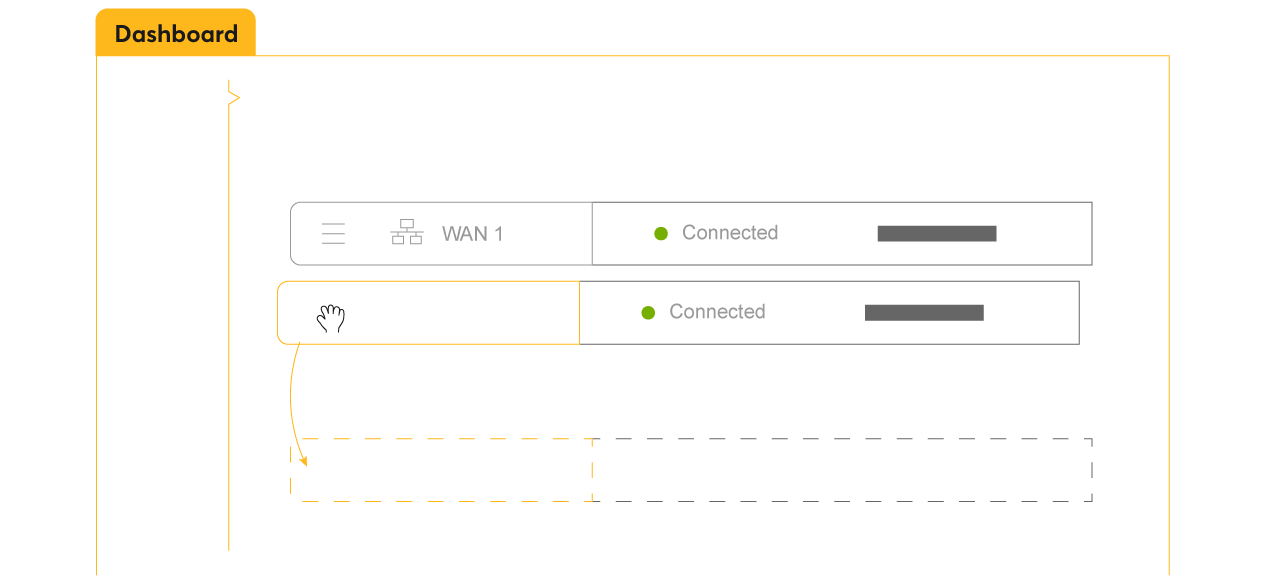
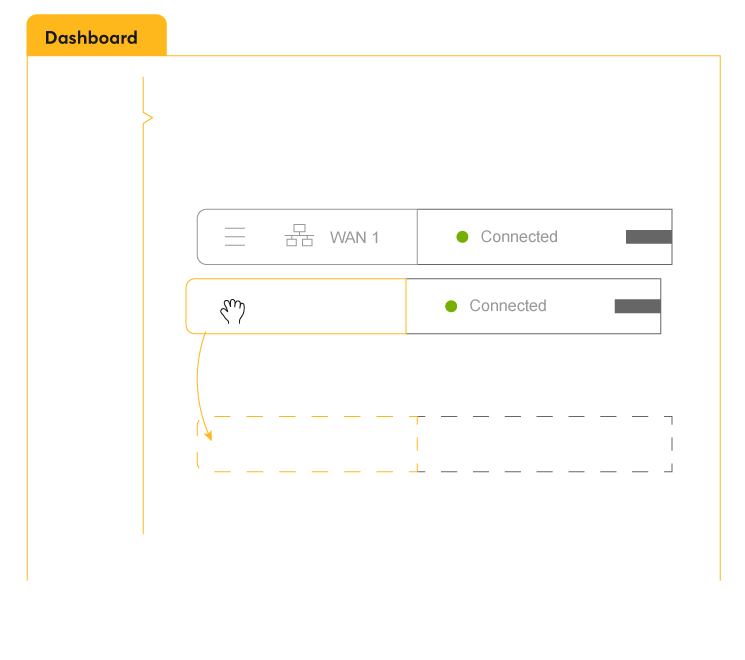
Cellular WANs + are automatically set as a Priority 1 WAN by default.
If you’d like to use it as backup instead, simply drag and drop it to Priority 2/3.
You’re all set and ready to go!
1 /4
Connect the Power Cord and the Antennas*
* Refer to antenna connector or cable ends
1 YEAR WARRANTY INCLUDED
to register: access.peplink.com