1+1 Backup requires a pair of Peplink Balance devices or MAX 700/HD, operating in active-standby mode. When the master device is down, the slave device takes over and handles all the LAN traffic.
Peplink Balance 210 or above, MAX 700/HD support High Availability (HA) failover between two Balance/MAX devices based on Virtual Router Redundancy Protocol (VRRP). Periodic VRRP advertisement packets are sent out from the master device to VRRP-specific IP multicast addresses. The slave device assumes the master device’s responsibilities when these messages have not been heard from for a pre-defined time interval.
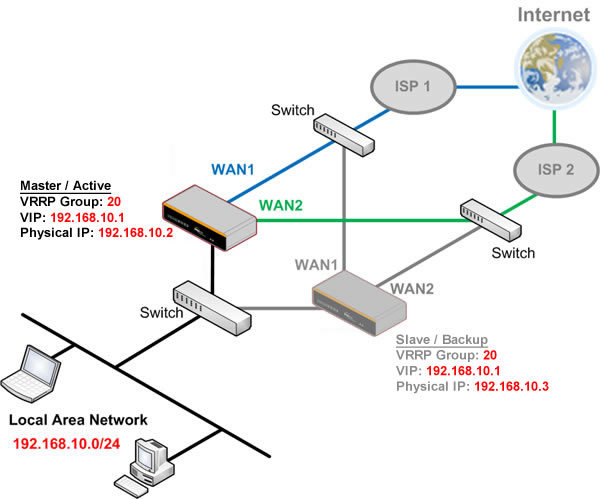
Network Setup Example in NAT mode
Achieve Ultimate Network Uptime with Peplink Balance
In the above example, a HA Group 20 is assigned to the HA pair. The virtual IP address (VIP) 192.168.10.1 is the default gateway for all hosts sitting on the LAN segment, which means for those devices sitting behind the Balance, their default gateway should be set as the VIP. A unique HA group identifier is used for each HA pair subsequently set up on the same LAN. Balance devices have to be on the same subnet to support HA and the same HA group identifier must be used on the HA pair.
Additional Ethernet switches are required to separate each ISP connection so that Master and Slave Balance devices can both be connected. Separate Ethernet switches are recommended in order to prevent a single point of failure, which would otherwise defeat the purpose of the 1+1 backup concept.
In this example, Master Peplink unit will use 192.168.10.2 as its LAN IP, Slave Peplink unit will use 192.168.10.3 as its LAN IP. Both Master and Slave units use the same VIP 192.168.10.1. This VIP 192.168.10.1 will be the default gateway for all hosts sitting on the LAN segment.
HA for Master Configuration
- Go to Network> Misc. Settings > High Availability of the Master unit. Select Enable.
- Enter the following and then click Save:
- Group Number: (use the same number for HA pair)
- Preferred Role: (select master or slave)
- Resume Master Role Upon Recovery: (check the box if you want the master unit recover its rule once it is recovered from the failure.)
- Virtual IP: (select an unused IP)
- (Note: VIP and LAN Administration IP have to be from the same network.)
- Click Apply Changes to activate settings.

Network Configuration Example in NAT mode
HA for Slave Configuration – Configuration Sync.
When Configuration Sync. is enabled, the Slave unit will obtain and apply the configuration changes of the master unit every 5 minutes.
- Click and choose Slave as the Preferred Role.
- Check the box to enable the Configuration Sync. feature.
- Enter the serial number of the master unit.
- Before apply changes, it is required to change the LAN IP address and set it as a different one from Master unit. Go to Network > LAN of the Slave unit and change LAN IP address.
- Click Save and then Apply Changes to activate settings.
- Once the Configuration Sync succeeds, you will find the “successful” message in the event log of the slave unit.
NOTE: Once the slave unit is configured to automatically sync configuration from master unit, the web admin of slave unit will be locked. Changes can only be made after you have disabled the Configuration Sync function.
HA for Slave Configuration – Manual
Alternatively, you may also configure the slave unit manually.
- Go to System > Configuration of the MASTER unit. Click Download under Download Active Configurationsand save the configuration file for the Slave unit.
- Go to System > Configuration of the SLAVE unit. Choose the configuration file exported in step 1 under theUpload Configurations from High Availability Pair and click Upload.
- Before applying changes, it is required to change the LAN IP address and set it as a different one from Master unit. Go to Network > LAN of the Slave unit and change LAN IP address.
- Go to Network > High Availability, change the Preferred Role of Slave Balance from Master to Slave.
- Click Save and then Apply Changes to activate settings.
The failover takes place with a typical recovery time of 10-15 seconds. After the Slave unit changed its role to Master, all WAN connections will be re-established again.
NOTE:
Two Balance units should be connected to the Internet in the same mode. For example, they should be both in NAT mode or Drop-in mode.
In NAT mode, the VIP should be set as the default gateway for all hosts sitting on the LAN segment. For example, default gateway of a firewall sitting behind the Balance is needed to be set as the VIP.
Configuration for 1+1 Backup in Drop-in mode
In Drop-in mode, configuration is similar to in NAT mode. The only difference is that there are no other configuration of hosts in LAN segment needed to be set. Please refer to the following illustrations for the setup example.


Network Configuration Example in Drop-in mode

Slave Configuration Sync. Example in Drop-in mode


